
If you’re working in Microsoft Fabric and need to pull data from Amazon Redshift, your first instinct is probably to reach for the Amazon Redshift connector. It’s right there in the list. It looks like it should just work.
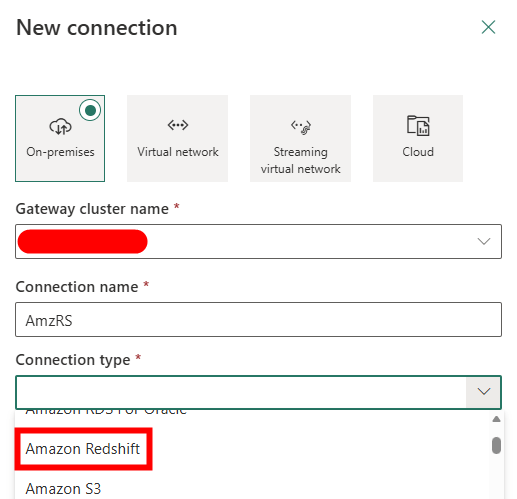
The Problem with the Native Redshift Connector
The issue is that the connector doesn’t work, well it does, providing you’re only using it to connect to a Dataflow Gen2.
That means if you’re building a pipeline and want to use a Copy Data activity to move data from Redshift into a Lakehouse or Warehouse, you’re out of luck. The connector simply isn’t supported in that context.
While using Dataflow Gen2 is a viable option, it comes at a cost. They’re considerably more expensive to run than a standard Copy Data pipeline activity, and for large or frequent data loads, that cost adds up fast.
So what’s the alternative?
The Fix: ODBC via an On-Premises Data Gateway
The good news is there’s a perfectly solid workaround. By installing an On-Premises Data Gateway alongside the Amazon Redshift ODBC driver, you can create an ODBC connection that Fabric can use in pipeline activities (including Copy Data).
Here’s the key things to know before you start:
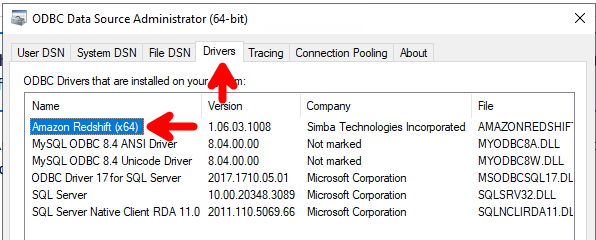
- You must use the 64-bit version of the Amazon Redshift ODBC driver. The 32-bit driver is not supported.
- You’ll need to configure a System DSN (not a User DSN) in the Windows ODBC Data Source Administrator.
- The gateway machine needs network access to your Redshift cluster.
Step-by-Step: Setting It Up
Step 1: Install the On-Premises Data Gateway
Download and install the On-Premises Data Gateway from Microsoft. This is the standard gateway used across Power BI, Power Automate, and Fabric. If you already have one running in your environment, you can reuse it. Oh, and update it while you’re there (you’re welcome for the reminder).
Step 2: Install the Amazon Redshift ODBC Driver (64-bit)
Download the 64-bit Amazon Redshift ODBC driver from the AWS website (link). Make sure you grab the 64-bit version, the 32-bit driver will not work here.
Install it on the same machine as your On-Premises Data Gateway.
Step 3: Configure a System DSN
Once the driver is installed, open the ODBC Data Source Administrator (64-bit). You’ll find this by searching for “ODBC” in the Windows Start menu, make sure you open the 64-bit version, not the 32-bit one (both may appear).
- Go to the Drivers tab and ensure the Redshift driver is listed.
- Go to the System DSN tab.
- Click Add and select the Amazon Redshift ODBC driver from the list.
- Fill in your connection details server, port (default 5439), database name, and credentials.
- Test the connection to confirm it’s working.
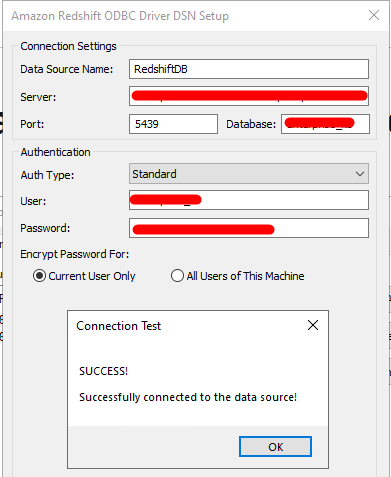
Important: Use System DSN, not User DSN. User DSNs are tied to the logged-in user account and won’t be accessible to the gateway service, which runs under a different account.
Step 4: Create an ODBC Connection in Microsoft Fabric
With the gateway and DSN in place, head over to Microsoft Fabric and navigate to your workspace settings or the Manage Connections area.
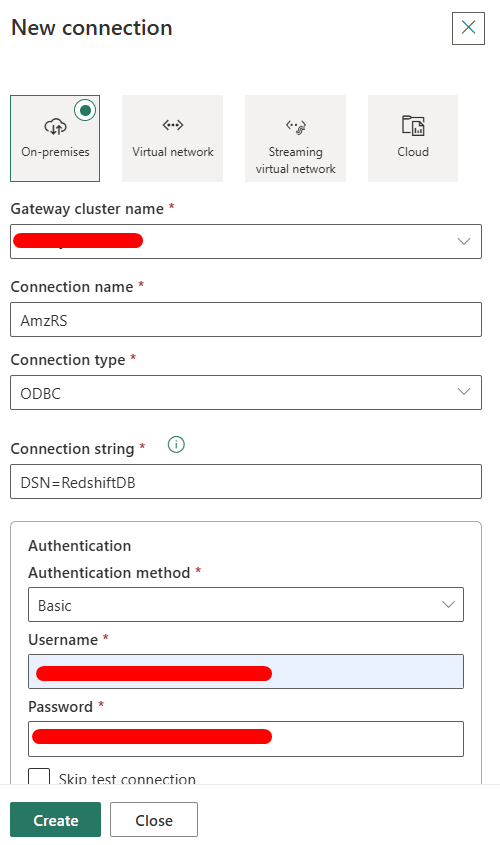
- Create a New Connection.
- Select ODBC as the connection type.
- Choose your registered On-Premises Data Gateway.
- In the connection string, enter “DSN=[DSN Name”], where the DSN name is the name that you configured in the ODBC Data Source Administrator tool .
- Provide credentials and save.
Step 5: Use It in a Pipeline
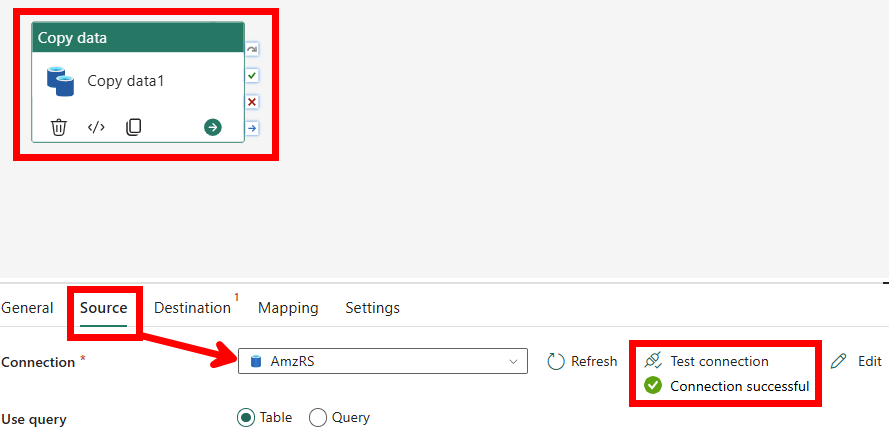
Now that the ODBC connection exists in Fabric, you can reference it in a Copy Data activity inside a pipeline, just as you would with any other supported database connector.
Set your source to the ODBC connection, configure your query or table, point it at your destination (Lakehouse, Warehouse, etc.), and you’re good to go.
Why This Works Where the Native Connector Doesn’t
The native Redshift connector in Fabric is built specifically for Dataflow Gen2’s Power Query engine, which is where its support ends today. ODBC, on the other hand, is a much more universal interface, and Fabric’s pipeline engine has full support for ODBC connections brokered through an On-Premises Data Gateway.
It’s a bit more setup upfront, but once it’s in place it’s reliable, pipeline-friendly, and significantly cheaper to run at scale compared to Dataflow Gen2.
So to conclude…
If you’re already working heavily in Fabric Pipelines, the ODBC route is the one to go with. The native connector is a dead end for anything beyond Dataflow Gen2 and the ODBC method is much cheaper to run.

 Data Luthier
Leave a comment